JavaScript Modules: Writing Code That Actually Scales
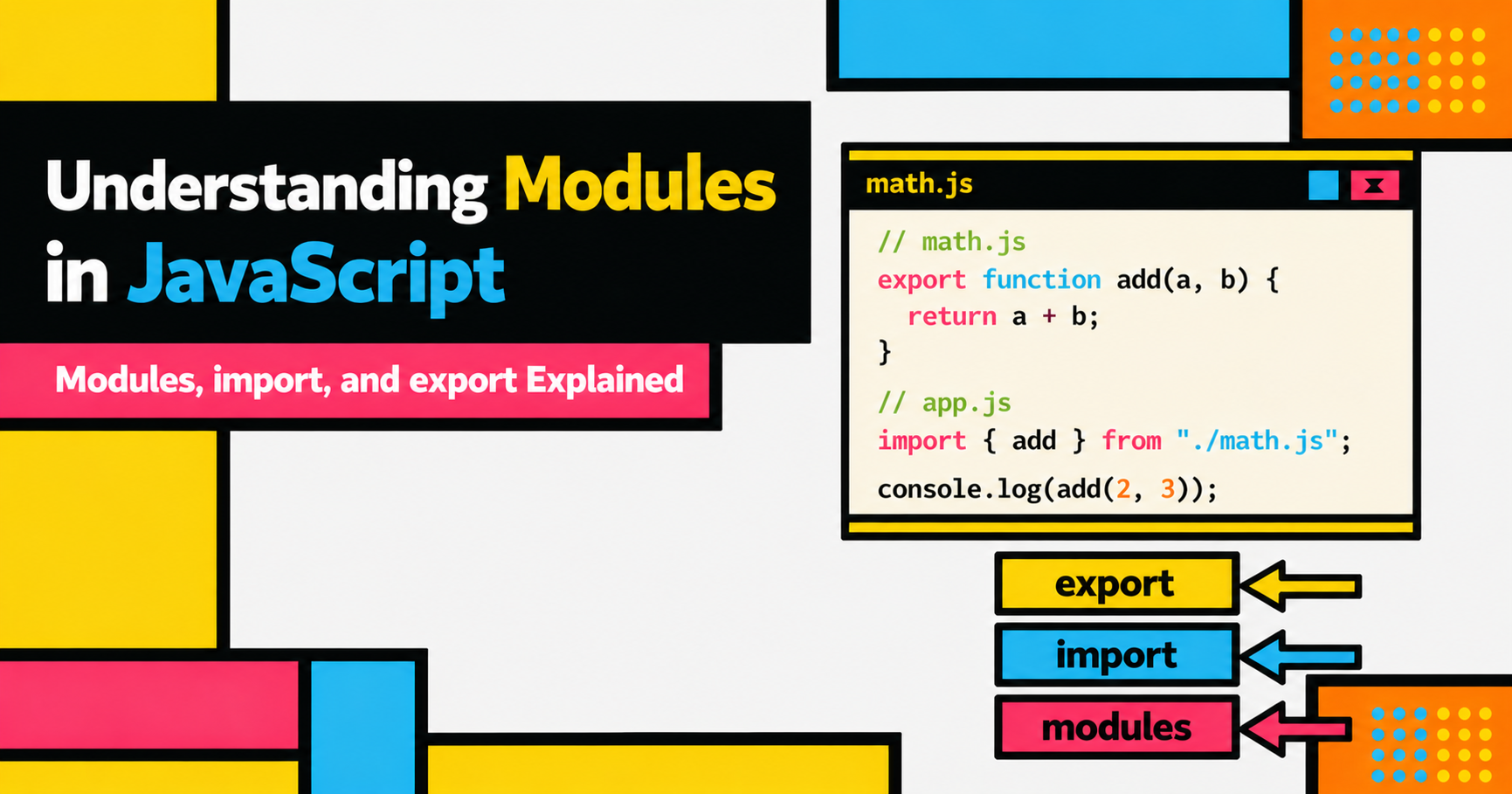
If you have been writing JavaScript for a while, there is a good chance you have experienced that moment where a single file becomes impossible to navigate. You scroll past a hundred lines of helper functions just to reach the part you actually need. You are not sure which function calls which. You make one small change and something else breaks somewhere else entirely.
This is the problem that modules exist to solve.
The Problem With One Big File
Imagine you are building a small app for a cricket score tracker. You start with a single app.js file. Fair enough. It has a few functions, some data, maybe a bit of DOM manipulation. Totally manageable.
A month later, that same file is 800 lines. There are utility functions for formatting numbers, functions that fetch API data, display logic, and event handlers all living together. No clear boundaries, no obvious ownership. If your friend Rohit wants to contribute to the project, he has to read the entire file just to understand where the score calculation lives.
This is called the monolithic file problem, and it is one of the first walls you hit as your JavaScript projects grow.
The traditional way people tried to handle this was to just use multiple <script> tags in HTML:
<script src="helpers.js"></script>
<script src="data.js"></script>
<script src="app.js"></script>
It looks organised at a glance. But there are real issues here. Every single variable and function from all three files lands in the same global scope. If helpers.js defines a variable called name and so does data.js, one quietly overwrites the other and you have a bug that is genuinely difficult to track down. On top of that, the order of your script tags matters. If app.js tries to use something from data.js but the browser loads them in the wrong order, everything breaks.
Modules give you a proper, reliable way to split your code across multiple files, each with its own isolated scope, and to explicitly declare what each file shares with the rest of the world.
What Is a Module?
A JavaScript module is just a file. What makes it special is that its contents are not automatically exposed to everything else. Variables, functions, and classes inside a module stay private by default. If you want something to be available to other files, you have to deliberately export it.
This might sound like extra work. It is actually the opposite. When everything is explicit, you always know exactly what a file depends on and what it provides. No surprises.
Exporting From a Module
There are two kinds of exports: named exports and default exports.
Named Exports
Named exports let you export multiple things from a single file. Each one is identified by name.
// mathUtils.js

export function add(a, b) {
  return a + b;
}

export function subtract(a, b) {
  return a - b;
}

export const PI = 3.14159;
You can also write everything first and export at the bottom, which some developers prefer for readability:
// mathUtils.js

function add(a, b) {
  return a + b;
}

function subtract(a, b) {
  return a - b;
}

const PI = 3.14159;

export { add, subtract, PI };
Both styles do the same thing. Pick one and stay consistent.
Default Exports
A default export is used when a file has one main thing it wants to share. Think of it as the primary export.
// greetUser.js

export default function greetUser(name, city) {
  return `Welcome to \({city}, \){name}!`;
}
Every file can have at most one default export. You can have both a default export and named exports in the same file, but keep in mind that mixing them heavily can make a file harder to understand at a glance.
Importing Into Another File
Once something is exported, you can pull it into any other file using import.
Importing Named Exports
// main.js

import { add, subtract, PI } from './mathUtils.js';

const scoreA = add(247, 83);
const scoreB = subtract(350, 102);

console.log(`Virat's score calculation: ${scoreA}`);
console.log(`PI is approximately: ${PI}`);
The curly braces here are not destructuring in the traditional sense. They are just the syntax for picking named exports from a module.
You can also rename an import if there is a naming conflict or if you want a shorter alias:
import { add as sumScores } from './mathUtils.js';

console.log(sumScores(140, 67));
Importing Default Exports
With default exports, there are no curly braces, and you can give the import any name you want:
// main.js

import greetUser from './greetUser.js';

console.log(greetUser('Deepika', 'Mumbai'));
// Welcome to Mumbai, Deepika!
Because the default export has no fixed name, you choose whatever makes sense in context.
Importing Everything at Once
If you need all the named exports from a file, you can use the namespace import:
import * as MathUtils from './mathUtils.js';

console.log(MathUtils.add(10, 20));
console.log(MathUtils.PI);
This is handy when you are using many exports from the same file. Just be careful not to overuse it. Explicit imports make it clearer where each thing comes from.
Default vs Named Exports: When to Use Which
This is one of those things where there is no absolute rule, but there is a sensible pattern that most developers land on.
Use a default export when your file has a single clear responsibility. A Button component, a fetchUserData function, a class like PlayerProfile. The file is essentially a container for one thing.
Use named exports when your file is a collection of related utilities or constants. Something like mathUtils.js or dateHelpers.js that bundles multiple small functions together.
// playerProfile.js — default export makes sense here
export default class PlayerProfile {
  constructor(name, city, team) {
    this.name = name;
    this.city = city;
    this.team = team;
  }

  describe() {
    return `\({this.name} plays for \){this.team}, based in ${this.city}.`;
  }
}
// statsHelpers.js — named exports make more sense here
export function battingAverage(runs, innings) {
  return (runs / innings).toFixed(2);
}

export function strikeRate(runs, balls) {
  return ((runs / balls) * 100).toFixed(2);
}

export function economyRate(runs, overs) {
  return (runs / overs).toFixed(2);
}
Then in your main file:
import PlayerProfile from './playerProfile.js';
import { battingAverage, strikeRate } from './statsHelpers.js';

const player = new PlayerProfile('Rohit', 'Mumbai', 'India');

console.log(player.describe());
// Rohit plays for India, based in Mumbai.

console.log(battingAverage(4000, 120));
// 33.33
Using Modules in the Browser
To use ES modules directly in a browser, you add type="module" to your script tag:
<script type="module" src="main.js"></script>
This tells the browser to treat main.js as a module. A few things change when you do this. The file runs in strict mode automatically. Its top-level variables do not leak into the global scope. And modules are always deferred, meaning they run after the HTML is parsed.
One thing to keep in mind: modules must be served over HTTP or HTTPS. If you open an HTML file directly from your file system using a file:// URL, the browser will block the module import due to CORS restrictions. Use a simple local server like the Live Server extension in VS Code while you are developing.
A Brief Note on CommonJS
If you have ever worked with Node.js or seen tutorials that use require() and module.exports, that is CommonJS. It was the module system Node used before ES modules became standard.
// CommonJS style (older Node.js code)
const { add } = require('./mathUtils');
module.exports = { greetUser };
The ES module syntax (import / export) is the current standard, and modern versions of Node support it as well. For any new project you start today, ES modules are the way to go. You will mostly encounter CommonJS in older codebases or legacy tutorials.
Why Modular Code Is Worth the Effort
When you split your code into modules, a few things happen that compound nicely over time.
Each file has a clear, single responsibility. You know exactly where to look when something needs to change. If the score calculation is broken, you open statsHelpers.js. If the UI is misbehaving, you open the relevant UI file. You are not hunting through hundreds of lines of unrelated code.
Modules are also straightforward to test in isolation. You can import a single function and write a test for it without pulling in everything else your app does. This makes debugging much faster.
And when you want to reuse something across projects, you just copy the relevant file. Since it is self-contained and its dependencies are declared at the top, it works independently without hidden coupling to the rest of your codebase.
Finally, modules make it much easier for multiple people to work on the same project. When files have clear boundaries, two developers can work on different modules without stepping on each other.
Putting It All Together
Here is a small but complete example that ties everything in this post together:
// statsHelpers.js
export function battingAverage(runs, innings) {
  return (runs / innings).toFixed(2);
}

export function strikeRate(runs, balls) {
  return ((runs / balls) * 100).toFixed(2);
}
// playerProfile.js
export default class PlayerProfile {
  constructor(name, city) {
    this.name = name;
    this.city = city;
  }

  introduce() {
    return `\({this.name} from \){this.city}`;
  }
}
// main.js
import PlayerProfile from './playerProfile.js';
import { battingAverage, strikeRate } from './statsHelpers.js';

const player = new PlayerProfile('Smriti', 'Delhi');

console.log(player.introduce());
// Smriti from Delhi

console.log(`Batting average: ${battingAverage(3200, 90)}`);
// Batting average: 35.56

console.log(`Strike rate: ${strikeRate(3200, 4500)}`);
// Strike rate: 71.11
Three files. Each doing one thing. No shared global state. No mystery about which function lives where. That is the whole idea.
Summary
Modules solve a real problem. As JavaScript applications grow, throwing everything into one file creates bugs that are hard to trace, code that is hard to share, and projects that are hard to maintain. Modules let you split your code into focused, self-contained files that explicitly share only what they need to.
The key things to take away: use named exports when a file provides multiple things, use a default export when a file has one primary purpose, and always import explicitly so your code stays readable. Add type="module" to your script tag and you are off to the races.
In the next post, we will look at how JavaScript handles asynchronous operations, starting with callbacks and working our way up to promises and async/await. That is where things start to get really interesting.